
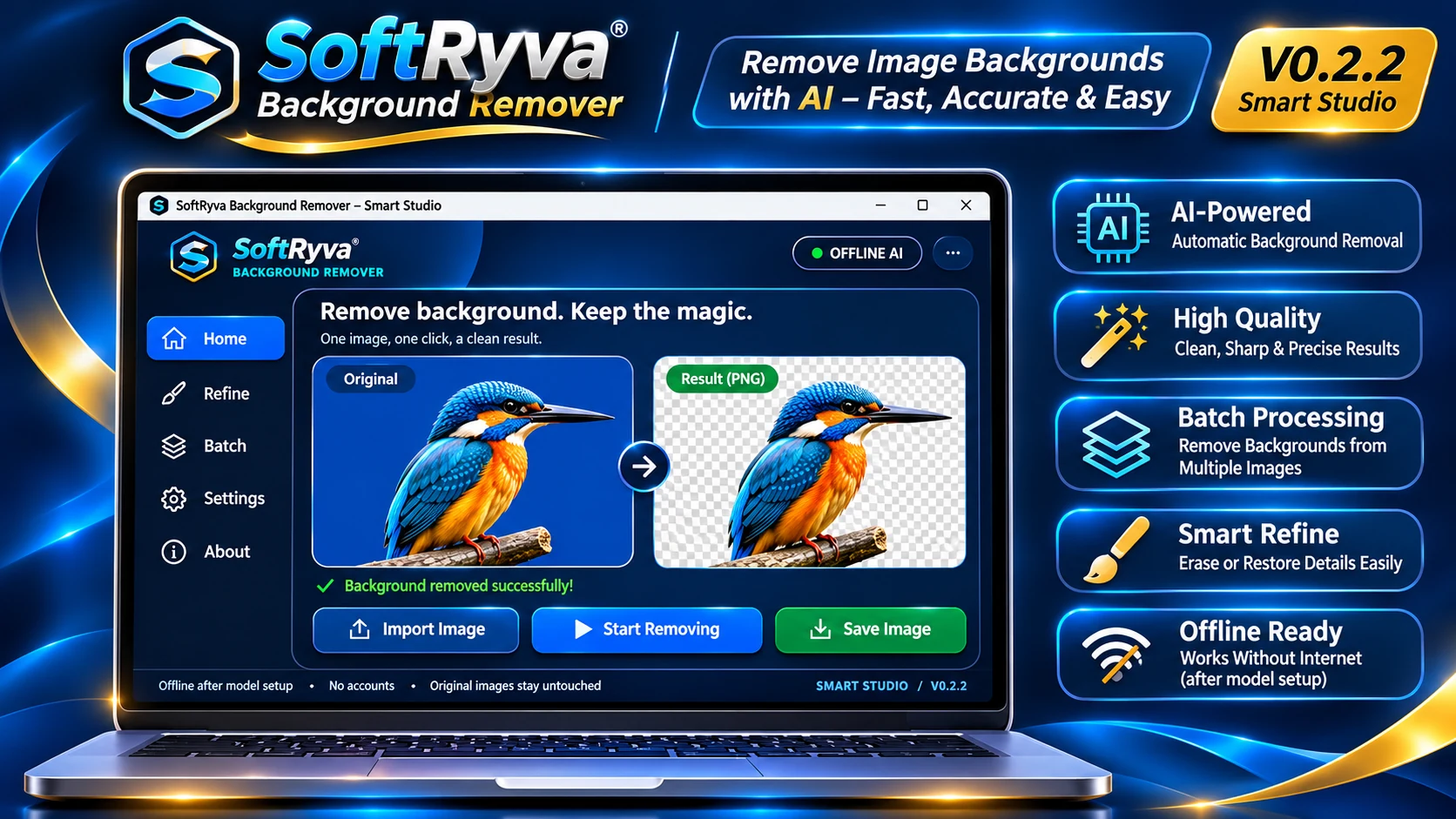
Meet SoftRyva Background Remover v0.2.2
Smart Studio • AI-assisted background removal • A simple Import → Start → Save workflow
SoftRyva Background Remover is a Windows desktop tool designed to remove backgrounds from images with fewer steps and less technical setup. Its Smart Studio workspace puts the essential controls in one place: import a picture, start background removal, preview the result and save it.
Whether you are preparing a product image, a social-media graphic, a simple logo or a personal photo, the application aims to make transparent PNG output easier to create. Processing takes place on your own computer rather than uploading your photographs to an online image-editing service.
Promotional illustration: the Smart Studio interface and before/after example are presented for visual demonstration. Actual layout and results may differ with the installed version and source image.
What does SoftRyva Background Remover offer?
- One-screen workflow: import, process and save without a complicated settings panel.
- Automatic method selection: the application makes an initial choice based on the image. More complex graphics can still need another method or manual refinement.
- Transparent PNG: export background-free results with alpha transparency for use in other designs.
- Optional JPEG export: save with a white background when a nontransparent JPEG file is needed.
- Smart Quality checks: flag obviously unsuitable cutouts and attempt an alternative installed model in certain cases.
- Smart Refine: optional Erase, Restore and Undo controls help repair areas that were kept or removed incorrectly.
- Batch processing: process a selection of images through the secondary tools menu.
- Local processing: images are processed on your device; no account or PIN is required to export.
How to remove an image background in three steps
Background removal for logos, products and photos
Different images present different challenges. A clean object against a simple background may be straightforward, while gradients, complex lettering, fine hair, transparent materials and shadows are harder to separate accurately. SoftRyva offers a Try another method option and optional edge-refinement tools so you can improve a result before saving it.
The software is intended to simplify these tasks, not guarantee perfect cutouts for every image. Always inspect important edges and lettering at a useful zoom before using exported graphics in client work or print designs.
Download SoftRyva Background Remover for Windows
Prefer to inspect the release details or download the checksum file first? Open the GitHub release page.
How to install and use it
- Download the Windows Setup EXE from the official GitHub release link above.
- Run the installer and follow the Windows setup instructions.
- Open SoftRyva Background Remover from the desktop shortcut or Start menu, if created during installation.
- Import your image, remove its background and save the exported file.
The published Setup is intended to bundle the runtime and an AI model so typical users do not have to install Python themselves. Availability and behaviour should still be verified on the target Windows PC. A first launch may take some time while local components are initialized.
Frequently asked questions
Do I need an account or PIN to export?
No. Export is enabled after a successful processing result. The normal workflow does not require account creation or a PIN.
Will it overwrite the original picture?
The workflow is designed to keep the source image unchanged and save the cutout as a new file using the Save As dialog.
Can it work without internet?
Background processing runs locally. The packaged release is designed to include an AI model for offline use; any additional optional models may require separate installation. Internet access is needed to download the installer from GitHub.
What if the cutout is not accurate?
Try another method if available, then use the optional Refine controls to erase leftover background or restore missing details. Some complex images will still need external editing.
Why save as PNG instead of JPG?
PNG can preserve transparent pixels. JPG does not support transparency, so the application places the result on a white background for JPEG export.
Does SoftRyva Background Remover require an internet connection?
No. The tested Windows installer includes the AI resources needed for offline background removal. The first operation may take longer because the AI engine needs to initialize.
SoftRyva original Windows software • Smart Studio v0.2.2 • Download provided through GitHub Releases