
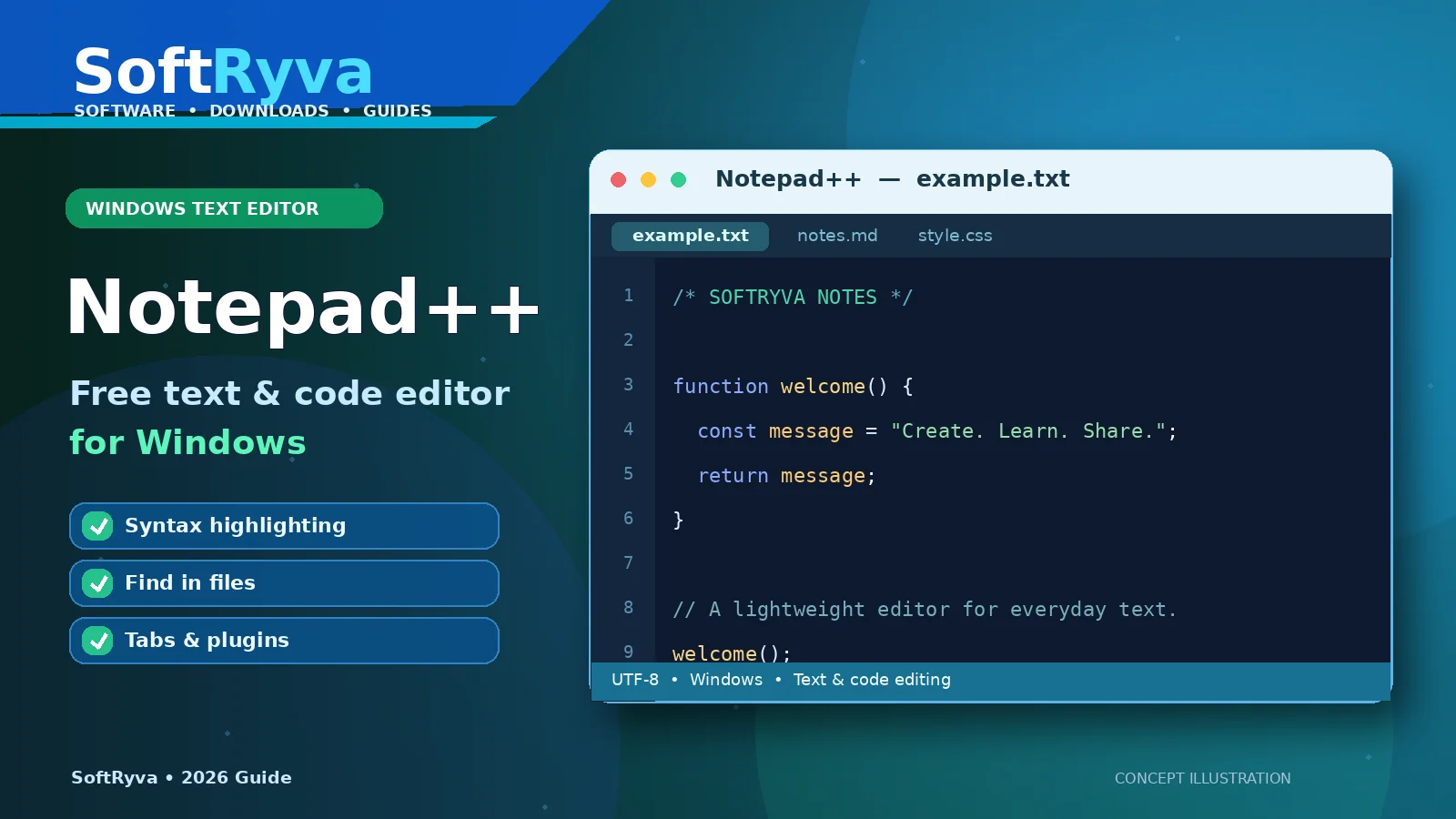
++ is a free Windows editor for plain text, source code, configuration files, logs, and quick notes. It adds features such as syntax highlighting, tabs, Find in Files, and optional plugins while remaining focused on text editing rather than full document layout.
In this SoftRyva guide, you will learn where to get the official installer, how to choose between installed and portable editions, and three practical workflows that make text editing easier.
Notepad++ 8.9.9.1: current release check
The project’s official GitHub releases list version 8.9.9.1, published November 12, 2026, as the most recent release checked for this article. Because software versions change, verify the version shown on the publisher’s download page when you download.
| Version checked | 8.9.9.1 (November 12, 2026) |
|---|---|
| Platforms | Windows; x64, 32-bit, and ARM64 packages are listed |
| Types | Installers and portable archives |
| Price | Free and open source |
| Official downloads | Notepad++ downloads |
Installed or portable: which should you download?
- Installer: convenient for a PC you use regularly. Choose the package matching your processor architecture.
- Portable archive: useful when you want to run the editor from an extracted folder, subject to your system’s permissions.
- ARM64: choose this build if your Windows device uses an ARM processor and the publisher provides it for the release.
Notepad++ is a Windows-focused editor; do not assume the Windows installer will run natively on macOS or Linux.
How to install Notepad++ safely
- Visit the official Notepad++ downloads page.
- Choose the current version, then select the installer for your Windows architecture.
- Download and open the installer; review the prompts and optional settings.
- Launch Notepad++, open a small text file, and confirm that text displays correctly.
- If you chose a portable package, extract it first and launch the executable from the extracted folder.
Three practical Notepad++ workflows
1. Inspect a configuration file without changing its format
Open a TXT, INI, JSON, or other text-based file in Notepad++. Read it before editing, and save a backup before modifying important settings. The editor is for plain text; it is not a replacement for a word processor when you need page layout or rich formatting.
2. Search through many files in a project
Use Search → Find in Files to look for a specific string inside a selected directory. Limit the directory or file filters where appropriate, review the matches, and avoid bulk replacement until you have confirmed the intended scope.
3. Keep text encoding in mind
When sharing text between applications, unexpected characters can sometimes come from encoding mismatches. Check Notepad++’s Encoding menu and make a backup before converting an existing file. UTF-8 is often a practical choice for new multilingual text files, but some legacy applications require another encoding.
Notepad++ versus Windows Notepad
Windows Notepad is useful for opening and editing simple text quickly. Notepad++ is a better fit when you regularly work with multiple files, syntax-colored code, large searches across folders, or extensions. It is still a text editor—not a compiler or complete programming environment.
Frequently asked questions
Is Notepad++ free?
Yes. The software is free and open source. You can download it from the official project website.
Can Notepad++ open Python or HTML files?
Yes. It can edit plain-text source files and highlight many languages. Running or compiling code is a separate task and may require other tools.
Should I install every plugin I see?
No. Add plugins only when you have a specific need. Check compatibility and the source before installing extensions.
Does SoftRyva distribute Notepad++?
No. This article links directly to the project’s official download resources.
Final recommendation
If you edit logs, code snippets, or configuration files on Windows, Notepad++ is a useful free tool. Start with the official current installer, learn the built-in search features, and keep backups when editing valuable files.
Official references: Notepad++ downloads • Official release list • Project home