
SOFTRYVA / UTILITIES / WINDOWS 11
You know the file exists. Perhaps it is a PDF you downloaded last week, a project folder you created months ago, or an installer with a name you only partly remember. Yet opening folder after folder in File Explorer feels like looking for a needle in a digital haystack. Everything from voidtools solves a specific problem: locating files and folders on Windows by name, with search results updating as you type.
This tutorial goes beyond installation. You will learn the actual search techniques that help you find invoices, photos, large files and project folders, organize recurring searches, troubleshoot missing results and use the program responsibly on a shared computer. The examples are designed so you can test them immediately.
invoice, or a pattern like *.pdf. Unlike a full document search engine, Everything primarily indexes names and paths—not the contents of every file.1. What is Everything—and what is it not?
Everything is a free Windows desktop search utility developed by voidtools. Its main strength is very fast searching of indexed file and folder names. On common NTFS drives, it can build an index quickly, then update the results as filesystem changes occur. It can also show a path, file size and modification date beside each result.
- It finds: files and folders whose names match your search, including files buried deep inside nested folders.
- It does not restore deleted files: if a file was permanently deleted and no longer exists on an indexed volume, Everything is not a data-recovery tool.
- It is not a backup: indexing file names does not create a safe copy of your documents.
- It does not index every document’s contents by default: optional
content:searches read documents and may be much slower.
Why the distinction matters: if you type budget, the normal search looks for a filename containing “budget.” It will not automatically locate a file named Report.docx merely because the word “budget” appears inside the Word document.
2. Download and install Everything safely
At the time of this guide, voidtools lists Everything 1.4.1.1032 as the stable version and offers a separate 1.5 beta. For this beginner tutorial, we recommend starting with the stable Windows installer. Version numbers can change, so always check the official download page.
- Visit the official voidtools Downloads page.
- Choose the normal installer for your Windows architecture, commonly 64-bit on Windows 11. Avoid third-party repackaged installers.
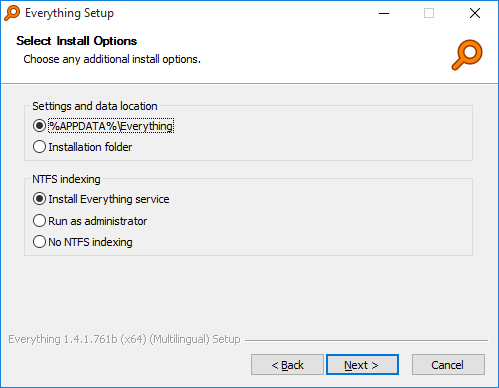
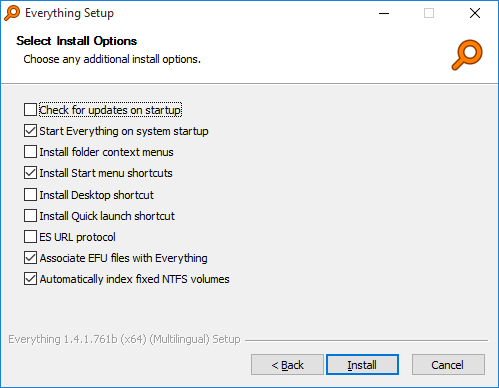
- Run the installer and review the installation options instead of clicking through blindly.
- For NTFS indexing, using the Everything service is generally more convenient than routinely running the entire search program as administrator.
- Choose whether to start Everything with Windows and whether to add Search Everything... to folder right-click menus.
- Launch the app. Allow the initial index to complete; the number of results will increase as entries are collected.
3. Understand the Everything search window
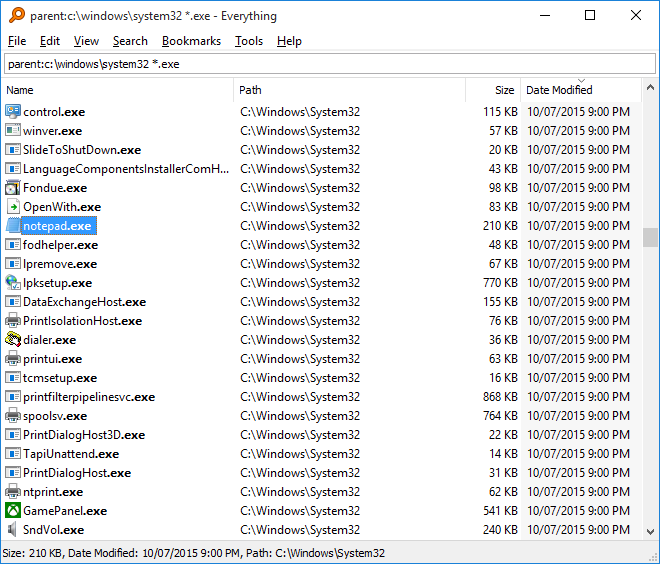
The interface is intentionally straightforward. The search box sits near the top. Below it, the result list shows matching files and folders. The Name column identifies the item; Path tells you where it lives; Size and Date Modified add useful context. Click column headings to sort. Double-click a result to open it, or right-click for more options.
For safer work, try searching first without altering any file. When you find a document, right-click and use an option to open its location, then verify the parent folder and file date. This is especially useful when several documents share similar names.
4. Five searches to try immediately
A. Find a file when you remember only part of its name
Everything searches matching filenames as you type. If your file is named Client_Invoice_November.pdf, the word invoice can help find it without knowing the folder. Refine with another word when too many results appear.
B. Find all PDF documents
The asterisk is a wildcard. This query searches for filenames ending in the PDF extension. Do the same with *.docx, *.xlsx, *.jpg or *.zip.
C. Combine words to narrow the results
A space normally works like AND: both terms must match. Instead of scrolling through thousands of files, combine a subject, date or customer name.
D. Search for either of two file types
The vertical bar means OR: show items matching either pattern. It is useful when images from different cameras or editing programs have different extensions.
E. Exclude unwanted filenames
This filters for Word documents matching “report” while excluding names containing “draft.” It does not tell you whether a document is legally final or approved; it only matches the filename.
5. The SoftRyva search cookbook: 12 reusable queries
Here are practical examples. You can type them directly into Everything. Some searches return no results if your PC does not contain matching files—that is normal. Match settings, version and indexed drives can affect results.
*.pdf*.docx*.xlsx*.zip | *.7zinvoice 2026presentation !old*.jpg | *.pngC:D:C:\Users\size:>500mbdm:today*.jpg | *.png is an OR expression; photo *.jpg combines conditions. If you enable “Regex” globally, basic syntax can behave differently, so switch it off when trying these beginner examples.6. Advanced Search: combine criteria without memorizing commands
For more complex queries, open Search → Advanced Search. The dialog can combine filename words, exact phrases, excluded terms, a search location and size or date limits. This is helpful when the file is somewhere in your Pictures folder but you only remember fragments of its name.
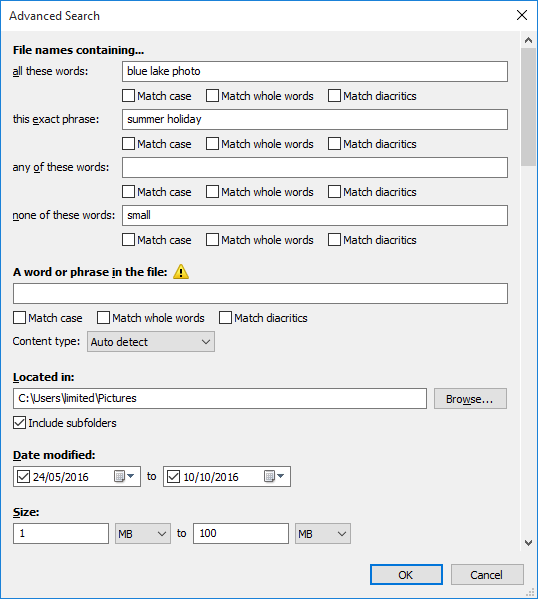
- For an old holiday photo: enter a subject phrase in the filename field.
- Choose the Pictures folder as the location and include subfolders.
- Optionally add a date range or size range when you know roughly when the file was created.
- Review the resulting filenames and paths before opening any file.
Advanced Search is not magical: it still relies on the indexed information and the criteria you select. A broad query or a search inside document contents can take longer than a simple name query.
7. Find recently changed files and large downloads
Imagine your disk is nearly full. Instead of deleting files at random, use Everything to identify large filenames or sort visible results by size. Click the Size heading to sort; use size:>500mb as a size filter. For a recently edited file, sort by Date Modified or use an appropriate date search.
*.mp4 size:>500mb*.zip size:>100mbdm:today *.docx8. Switch to thumbnails for visual file searches
Sometimes you remember what an image looks like, but not its name. Everything can show image thumbnails instead of a plain list. Open the View menu and select an icon/thumbnail mode available in your installed version. You can then scan results visually, confirm the full path and open the image you need.
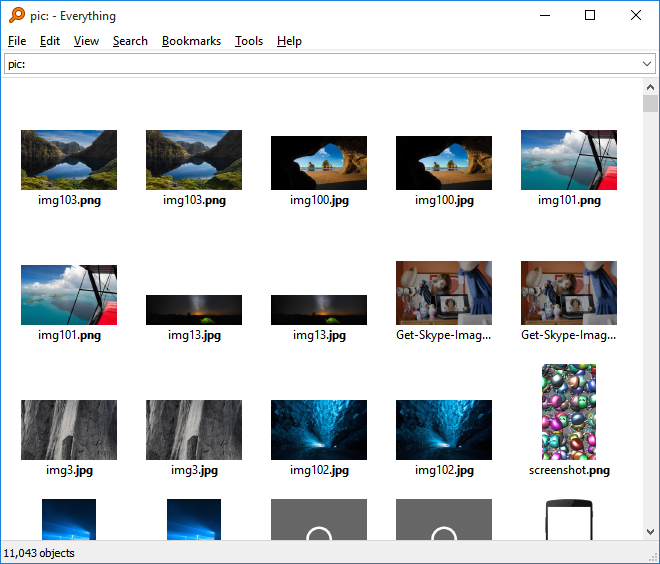
For a blog editor, a useful workflow is to search *.png, switch to thumbnails, locate the correct screenshot and inspect its full size before uploading it to Blogger. Avoid publishing accidental screenshots that reveal account names, personal information or private documents.
9. Can Everything search the text inside PDFs or Word files?
Yes, Everything supports content: searches, but with an important limitation: file contents are not indexed by default. The app may need to read candidate files one by one, so content searches can be noticeably slower than filename searches. Some document formats depend on compatible Windows IFilters; scanned image-only PDFs are not automatically converted into readable text.
*.txt content:meeting*.pdf content:invoiceImprove performance by narrowing the file type, folder and date first. If you need full-text search across many documents all day, a dedicated document indexer may be more suitable. If you only need a filename, remove content: and use the fast name index.
10. Why can a USB stick or network folder be missing?
Everything automatically focuses on supported local filesystem indexes. However, a USB drive formatted as exFAT or a mapped network share may not appear until you explicitly add it. Open Tools → Options → Folders and add a specific location, then let Everything scan it. For stable internal NTFS disks, review Tools → Options → NTFS and check that the volume is selected.
- First check the drive is visible in Windows File Explorer.
- For missing NTFS results, review volume indexing in Everything’s options.
- For an exFAT USB stick or a shared folder, add the location through the Folders index settings when supported.
- Allow the scan to complete; unlike the NTFS journal method, these locations may need periodic rescanning.
- Disconnecting external media may make a saved search result unavailable. Always check that the file is accessible before trying to open it.
Network search requires access permissions. Do not enable network or web server features simply to search your local PC. See voidtools: Indexes for volume-specific behavior.
11. Search from a folder and save frequent searches
Everything can integrate with Windows File Explorer. During setup, the option Show Search Everything folder context menu item adds a shortcut when you right-click a folder. On some Windows 11 configurations the command may appear under Show more options. This is especially useful when you want to search inside a single project folder.
If you repeatedly search for PDFs, invoices or project exports, use Bookmarks → Add to Bookmarks to save a query. For a quick handoff to a teammate, Everything also offers result export options such as CSV or TXT (depending on version). Treat exported filenames and folder paths as potentially sensitive metadata.
12. Bonus: rename a small batch without losing track
Everything includes tools for managing found files, including multi-file renaming. This feature can save time—but only when used carefully. In the result list, select a small group of similar files and press F2 to open the rename dialog. Review how new filenames will look before accepting the changes.
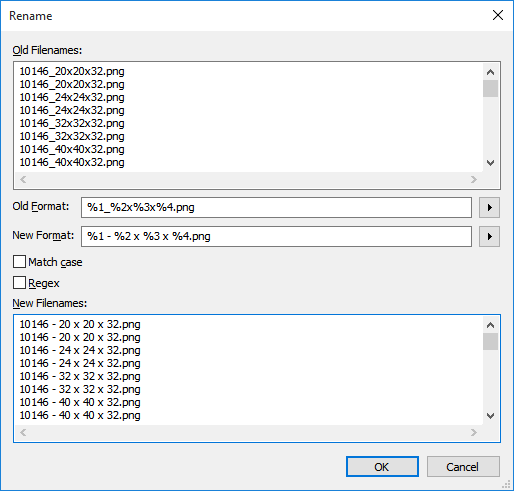
- Copy five sample images to a temporary folder first.
- Find and select only those five files in Everything.
- Press F2 and adjust the filename pattern while checking the preview.
- Confirm that file extensions remain intact and that none of the names collide.
- Apply the rename to the copies, then inspect the resulting files.
13. Privacy, permissions and safe settings
A filename index can reveal the names and locations of files even when you never open them. On a shared or work PC, be careful about search history, screenshots and exported results. Only index folders you have a reason and permission to work with. If a directory should not appear, look at Tools → Options → Exclude and configure an exclusion for that location.
For ordinary local searching, no cloud account is needed. Do not enable Everything’s HTTP server or ETP/FTP sharing services unless you know why they are necessary and have configured security appropriately. The default local search use case does not require publishing your index to a network. Closing the window may leave the utility running in the tray; use File → Exit to close it fully.
14. Common problems and reliable fixes
Problem: The search shows no results
Verify that indexing has completed and that the right drive is indexed. Also check whether a search filter (such as Audio or Video), Match Case, Regex or Match Path is still turned on. Clear the search box and reset unwanted filters, then try a known filename.
Problem: A USB or external drive is not listed
Check that Windows can read the drive, then review NTFS and Folders index settings. Some external formats require adding the folder manually and waiting for a scan.
Problem: Search is fast, but searching inside content is slow
This is expected: normal filename search uses the index, while content: may need to read files. Narrow your query by folder and extension or rely on a dedicated content search tool.
Problem: An item appears in results but cannot open
Confirm the location still exists. A removable drive may be disconnected, a network share may be offline, or permissions may have changed. Avoid attempting to bypass permissions.
Problem: The program opens but cannot index NTFS
Review whether the Everything service is installed and running. Microsoft Windows may prompt for elevated permissions during initial setup. Choose service-based indexing when appropriate rather than running the entire application elevated all the time.
Problem: Two results seem identical
The same filename can exist in more than one folder. Compare full paths, sizes, dates and, if necessary, file hashes with an appropriate verification tool. Matching names do not prove identical contents.
15. SoftRyva 10-minute practice: build your own search workflow
This exercise uses ordinary sample files and avoids altering important documents. The goal is to teach a repeatable process rather than memorize a long list of commands.
- Minute 1–2: Create a temporary folder with three harmless sample files, such as
Invoice_November.txt,Project_Notes.txtandHoliday_Photo.jpg. - Minute 3: Open Everything and type
invoice. Verify the expected filename and path. - Minute 4: Replace the query with
*.txt. Find both text documents. - Minute 5: Enter
*.txt !notesand confirm it excludes the Notes filename. - Minute 6–7: Enter the temporary folder’s full path (with a trailing backslash) to restrict results.
- Minute 8: Sort the results by Date Modified and check the dates.
- Minute 9: Save a useful search in Bookmarks.
- Minute 10: Open the folder in File Explorer and confirm the correct files remain untouched.
16. Frequently asked questions
Is Everything really free?
Yes. The official voidtools FAQ describes Everything as freeware. Download it from the developer’s own website.
Does it work on Windows 11?
Yes. The official FAQ lists Windows 11 among supported systems. Choose a build suited to your PC.
Is Everything the same as Windows Search?
No. Everything is a separate utility focused on fast file and folder name searches; Windows Search can integrate other search experiences and settings. They can coexist.
Can Everything recover permanently deleted files?
No. It finds indexed files that exist, rather than recovering deleted data from storage sectors.
Can it locate duplicate files?
You can find matching filenames, but that does not establish identical contents. Certain enhanced duplicate-finding commands are documented for Everything 1.5 beta; this guide avoids implying those functions are available in every stable 1.4 installation.
Will indexing use a lot of memory?
According to voidtools, typical filename indexes are lightweight, although the actual resource use depends on file count, drive types and optional indexing settings.
Can I use it without internet access?
Yes, for local indexed filename search after installation. Updates and visits to the download and support pages require internet access.
Where should I download it?
Use the official voidtools Downloads page. We do not recommend files from disguised advertisement buttons or unofficial mirrors.
Official downloads and documentation
- voidtools: Everything homepage
- Official installer and portable downloads
- Official FAQ: performance, content search, support and freeware
- Searching guide and examples
- Indexing drives, folders and exclusions
- Results, thumbnails and renaming
Final takeaway: Everything is one of those small Windows utilities that rewards learning just a few simple habits. Start with filenames, use type filters and paths when necessary, and verify before changing files. With those fundamentals, finding the right document becomes a repeatable task instead of a long hunt through folders.
Independent editorial note: SoftRyva is not affiliated with voidtools. Everything is a product of its developer; screenshots above are sourced from official voidtools documentation for educational illustration, with direct links to the original images. Software versions, screen labels and available features may change. Article examples were checked against official instructions, but not tested on every Windows configuration. Published screenshots should not be represented as SoftRyva-owned artwork.