
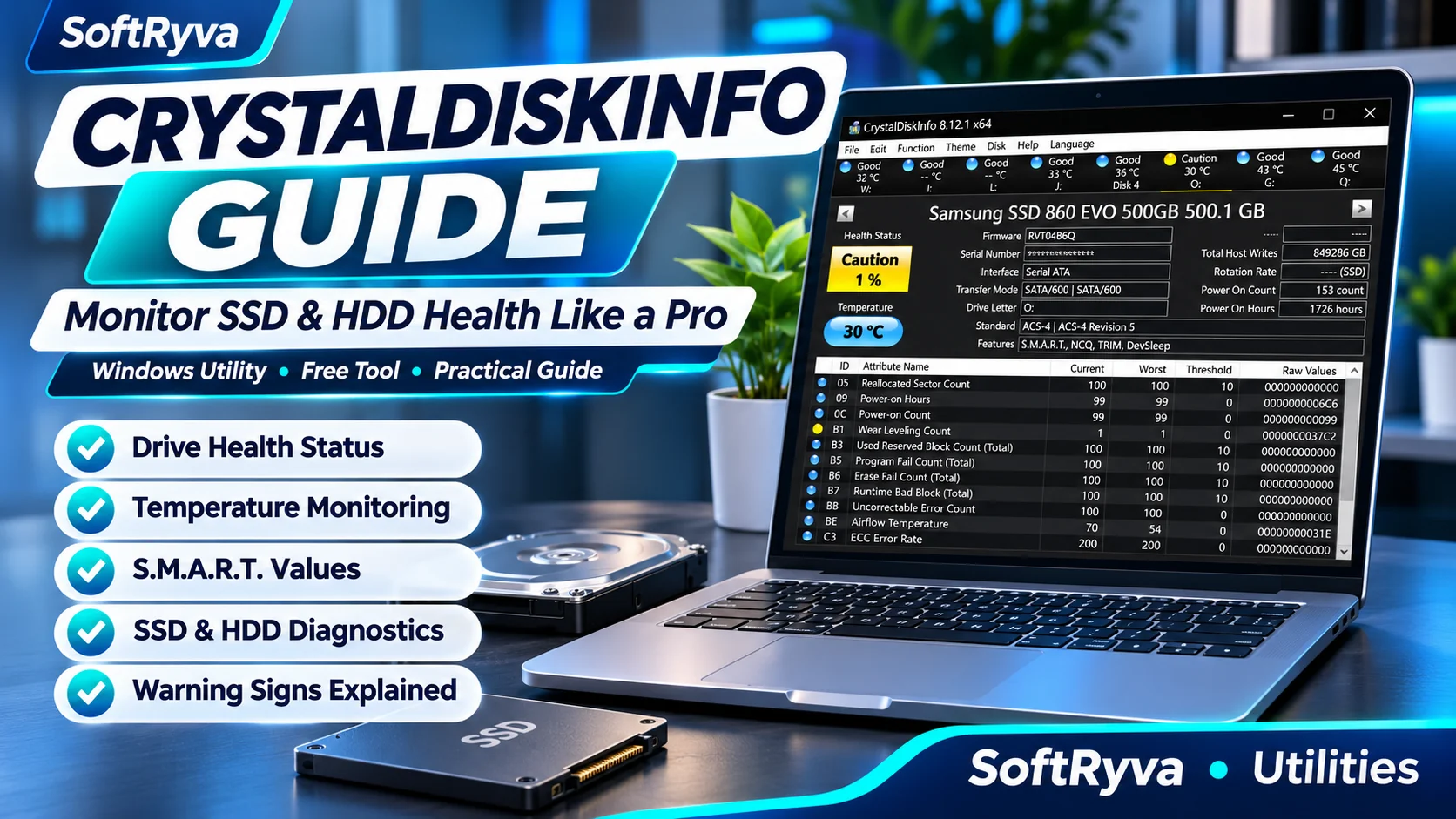
SoftRyva Utilities / Windows 11 / Storage Health
This practical SoftRyva tutorial explains how to download CrystalDiskInfo safely, navigate its interface, understand Good/Caution/Bad warnings, interpret essential metrics, and decide what to do when a drive may be failing. You do not need previous hardware diagnostic experience.
Software: CrystalDiskInfo | Developer: Crystal Dew World | Stable release: 9.9.5 (November 15, 2026) | Platform: Windows, including Windows 10 and 11 | Price: Free
Download CrystalDiskInfo — Official SiteRead Developer's Manual- What CrystalDiskInfo does
- Safe download & installation
- First 5-minute health check
- Understanding health colors
- How to read S.M.A.R.T.
- HDD warning indicators
- SSD and NVMe health
- Temperature explained
- Monitoring and alerts
- What to do when a drive warns
- Troubleshooting
- Practical monitoring exercise
- Frequently asked questions
1. What Is CrystalDiskInfo, and What Can It Actually Tell You?
Every storage device has a controller responsible for operations and, in many cases, for maintaining diagnostic counters. CrystalDiskInfo reads supported information from those devices and presents it in an easier-to-understand view. It can show the model and capacity, firmware, interface, drive letter, temperature, operating hours, power-on count, and S.M.A.R.T. attributes.
It is especially useful for checking a computer before buying it used, investigating intermittent slowdowns, monitoring aging storage, or checking an external hard drive when the enclosure supports passing diagnostic commands to Windows.
2. Download CrystalDiskInfo Safely — Installer vs Portable ZIP
The safest starting point is the developer's official download page: crystalmark.info/en/download/. Scroll to CrystalDiskInfo and select the Standard Edition. On November 20, 2026, the official website identifies 9.9.5 as the current release, published November 15, 2026. Download pages and filenames can change, so rely on the live official page for the latest file.
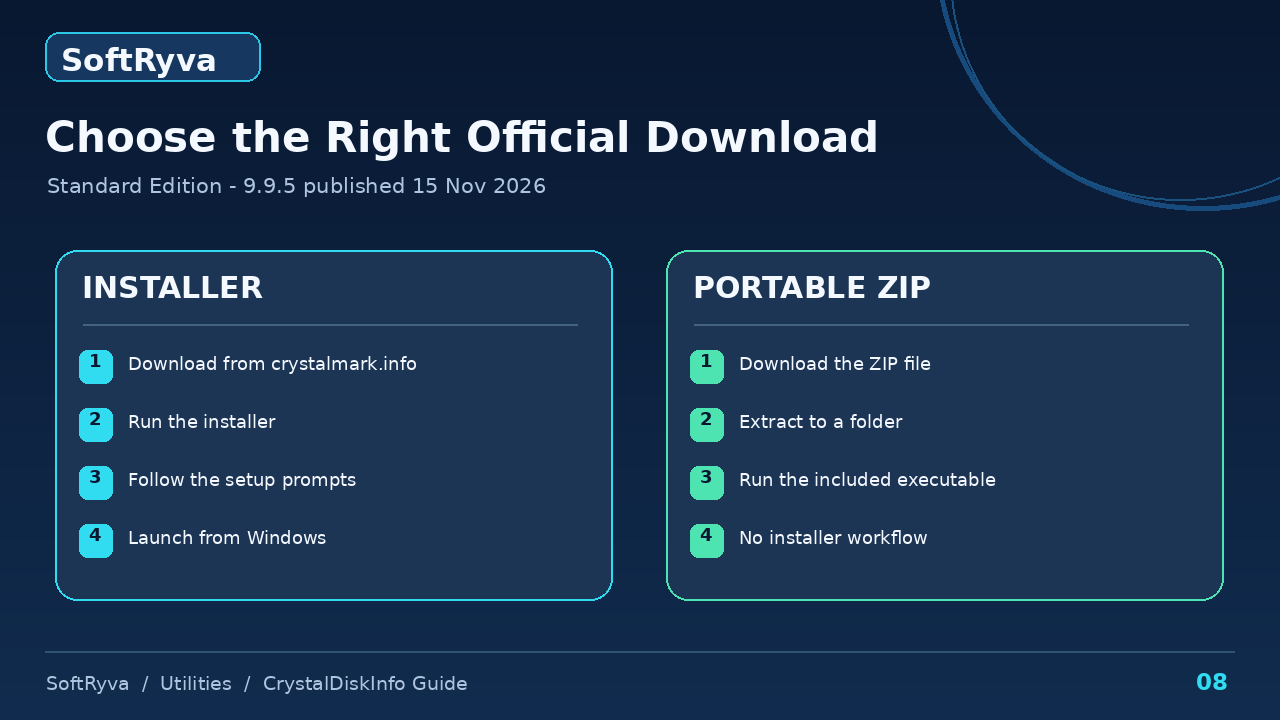
Choose Installer for a standard setup, or ZIP for a folder-based portable launch. Original SoftRyva illustration.
Option A — Standard Installer
- Open the official download page.
- Find CrystalDiskInfo → Standard Edition → Installer.
- Download and run the installer provided through the developer's link.
- Review the setup prompts; avoid changing unrelated system settings.
- Launch CrystalDiskInfo from Windows when installation finishes.
Option B — Portable ZIP
- On the same official page choose ZIP under Standard Edition.
- Save the ZIP archive to a known folder.
- Right-click the file and choose Extract All.
- Open the extracted folder and launch the appropriate included executable for your system.
- Keep the folder together if you want to reuse the portable version.
Both options show drive information; portable ZIP mainly changes how the application is deployed. For a shared or managed PC, follow your organization's software-installation rules. Use the official site instead of unknown download mirrors, bundled setup packages, or advertisements masquerading as download buttons.
3. Your First CrystalDiskInfo Health Check in 5 Minutes
Open the application and wait for the device list to appear. If multiple disks are installed, select the correct drive in the top strip or via the Disk menu. Don't assume drive C: is the only physical disk; one physical drive may hold several partitions.
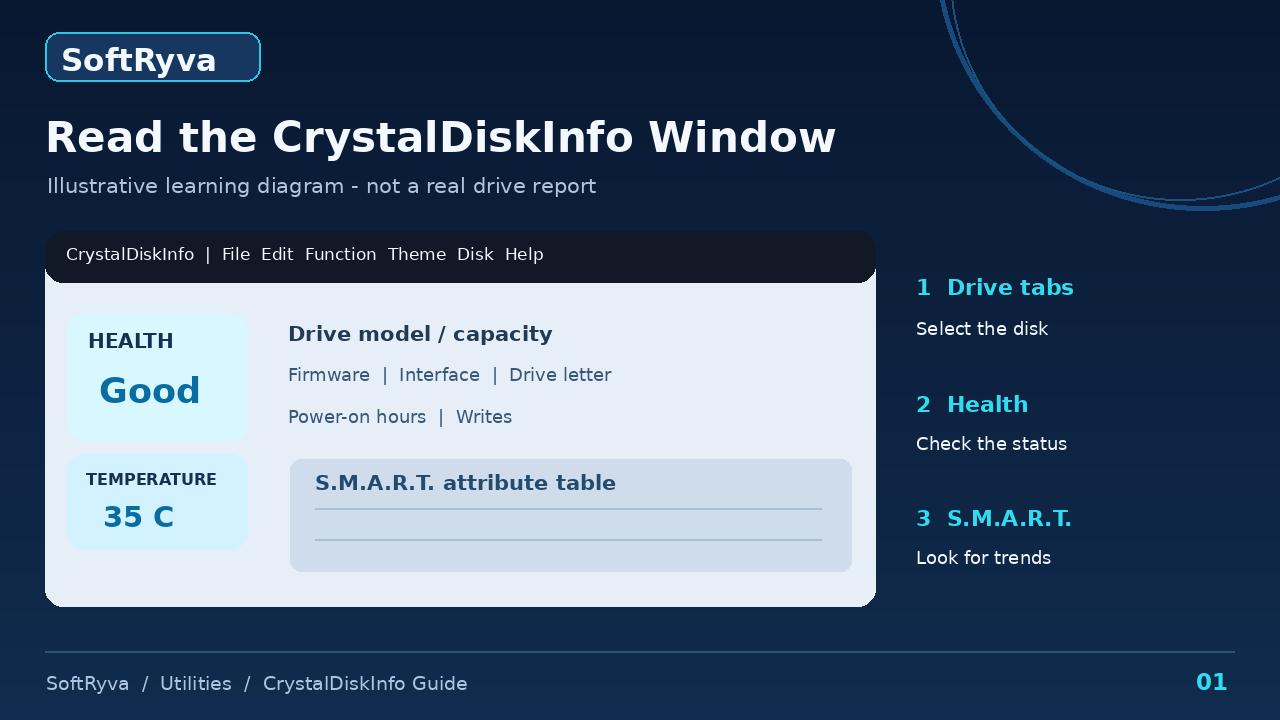
Illustrative layout: the exact wording and placement can differ by release, device type, and theme.
- Identify the device: Read its model name and capacity at the top, then check the interface (Serial ATA or NVM Express).
- Read Health Status: Look at the colored indicator on the left, such as Good or Caution.
- Read Temperature: Note the current reported temperature in Celsius or Fahrenheit.
- Find usage information: Check Power On Hours, Power On Count, and, where supported, cumulative host reads and writes.
- Review S.M.A.R.T.: Look at the lower table. Record questionable raw values rather than relying only on the colored summary.
- Save a record: Use Edit → Copy to copy diagnostic details to a text file; also take a screenshot. Hide the serial number before sharing publicly (Function → Hide Serial Number).
Do not change health thresholds merely to make a warning disappear. The status display is based on device values and software settings, not on a repair action.
4. Good, Caution, Bad, and Unknown: What the Colors Mean
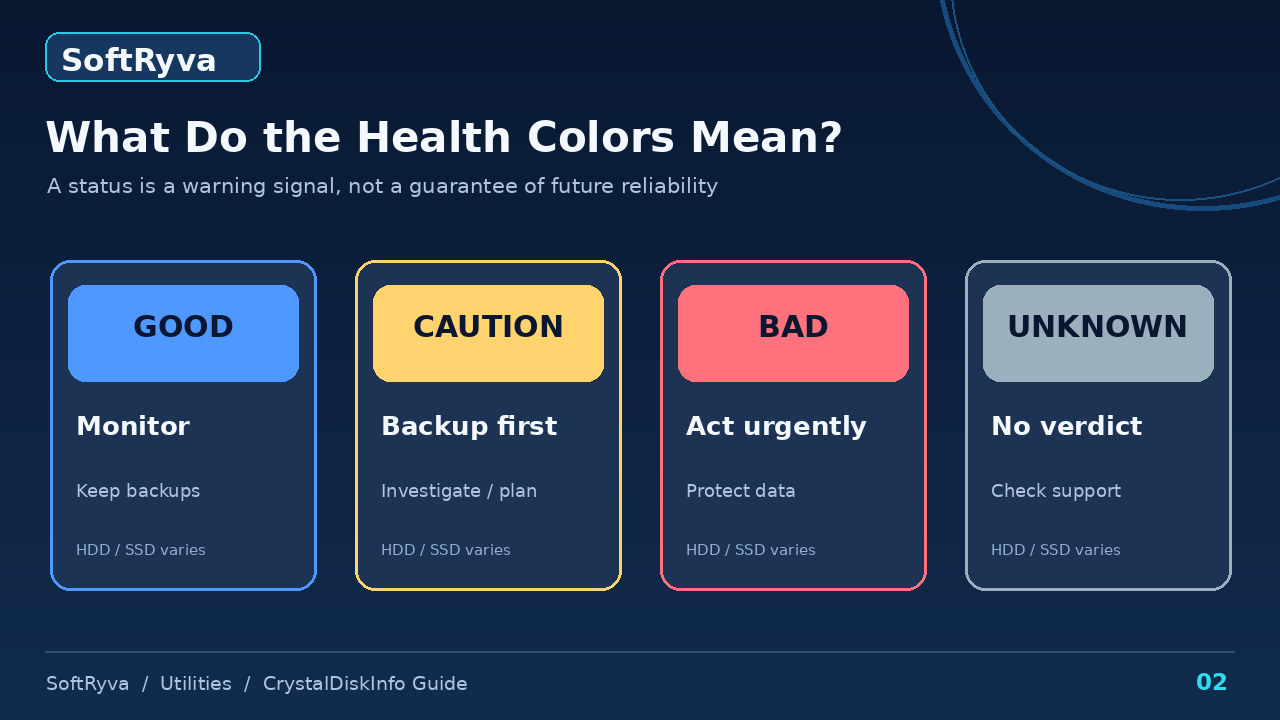
A color can help triage a problem, but it cannot predict the exact date a drive will fail.
| Displayed status | What it suggests | Practical action |
|---|---|---|
| Good (blue) | No monitored condition currently triggers the software's warning rules. | Keep routine backups; recheck periodically. |
| Caution (yellow) | One or more relevant values crossed a configured warning threshold. | Back up first, record details, investigate and plan for replacement. |
| Bad (red) | A serious health criterion may have been reached. | Minimize nonessential activity; protect data urgently and seek support. |
| Unknown (gray) | Health cannot be evaluated reliably for that device. | Check controller support and the manufacturer's diagnostic tool. |
The criteria depend on device family. Certain HDD counters (05, C5, and C6) receive special attention, while SSDs can expose endurance or spare-capacity estimates. Unknown does not mean healthy. Even Good drives can fail without advance warning.
5. S.M.A.R.T. Explained: Current vs Worst vs Threshold vs Raw
S.M.A.R.T. stands for Self-Monitoring, Analysis and Reporting Technology. A drive records diagnostic attributes and CrystalDiskInfo displays them in rows. Users frequently confuse normalized numbers with raw counters, leading to false interpretations.
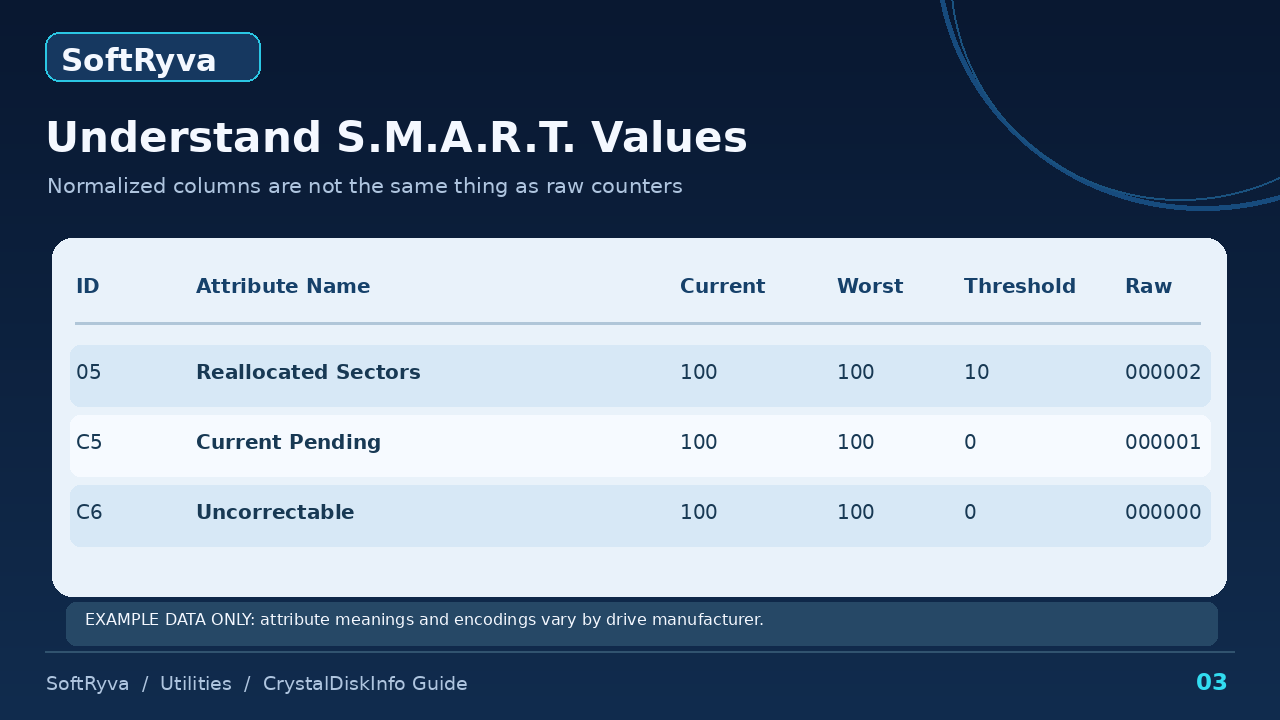
Fictitious example values for learning, not a reading from an actual drive.
| Column | How to read it |
|---|---|
| ID | A hexadecimal identifier such as 05 or C5. |
| Attribute Name | Manufacturer- or standard-related label describing a monitored condition. |
| Current | A normalized value calculated by the device, often not a real-world unit. |
| Worst | The worst normalized value observed or stored by the device. |
| Threshold | The manufacturer's normalized failure criterion, where supported. |
| Raw Values | Device-reported counters or encoded data, often shown in hexadecimal; interpretation varies. |
Example: 000002 for an illustrative raw count may look like two events if the drive reports a direct integer counter, but not every raw value is a simple decimal count. Some vendors pack multiple fields into one raw value. Compare the readings with the manufacturer documentation before drawing conclusions. You can change the Raw Values display method under Function → Advanced Feature → Raw Values when relevant.
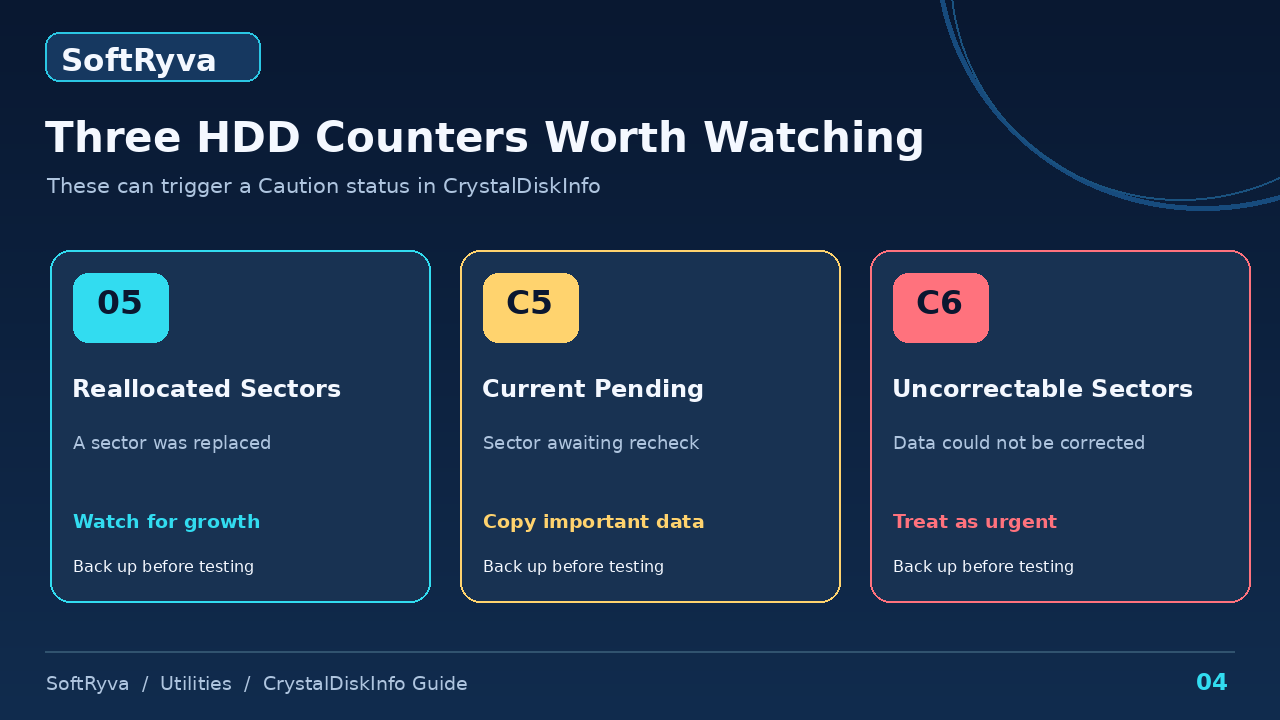
6. Three HDD Warning Attributes: 05, C5, and C6
Traditional hard disk drives store data on spinning magnetic platters. When their surface develops unreliable areas, several S.M.A.R.T. attributes may reveal the issue. CrystalDiskInfo specifically considers the following three counters in its standard HDD caution logic.
These three HDD indicators deserve attention, especially when values are rising over time.
05 — Reallocated Sectors Count
When a disk determines that an area cannot be used reliably, it can substitute a reserved sector. A nonzero count does not by itself predict immediate death. However, increasing reallocations are a sign that the drive may be deteriorating. Back up important data and monitor the trend.
C5 — Current Pending Sector Count
This commonly refers to unstable sectors awaiting further evaluation. You may notice read errors, sluggish performance, failed file copies, or freezing. A pending count can later decrease or become a reallocated count. Its return to zero is not proof that the disk has become reliable again.
C6 — Uncorrectable Sector Count
These are sectors where the drive's error-correction mechanism could not successfully recover data. Prioritize copying what remains accessible and avoid intensive operations until your files are secured. For audible clicking, repeated disconnections, or inaccessible files, consider professional recovery assistance rather than experimenting with repeated scans.
What about C7 — UltraDMA CRC Error Count?
An increasing C7 count can indicate a communication problem, such as a bad or loose SATA cable or connection issue, rather than damaged magnetic sectors. Investigate cabling and power connections after securing important files. The raw counter may be cumulative, so it may remain nonzero after the connection is fixed.
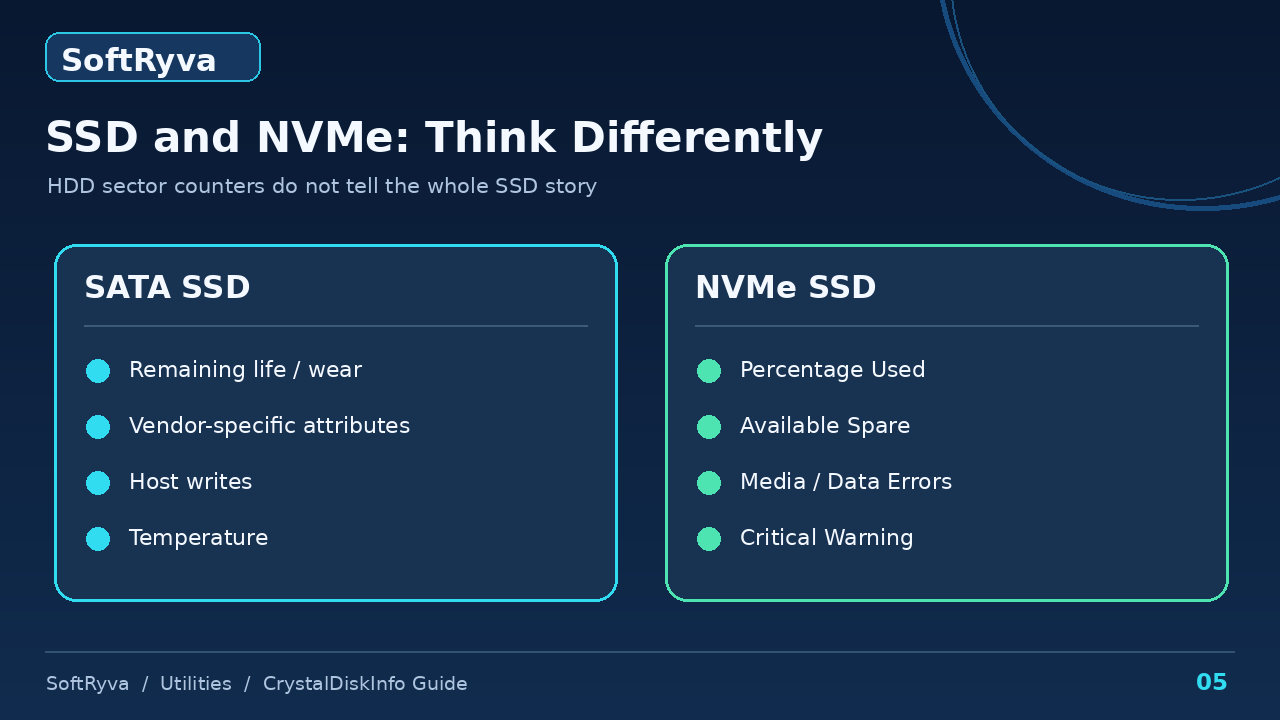
7. SSD & NVMe Health: Remaining Life, Percentage Used and Spare Capacity
Solid-state drives have no spinning platters. They can wear due to program/erase cycles and can report endurance information and other controller-related metrics. However, the names and meanings of these values vary among SATA SSD brands and NVMe devices.
Typical classes of SSD indicators; not all devices expose every entry.
Remaining Life / Health Percentage
Many SSDs report a percentage that reflects the manufacturer's estimated endurance consumption, not a calendar countdown. For example, “95% remaining” does not mean the device is guaranteed to survive for 95 more months or years. CrystalDiskInfo can display a Caution status when remaining life is at or below 10% for supported SSDs, with vendor-specific exceptions.
NVMe Percentage Used
For NVMe drives, Percentage Used is an estimated measure of consumed endurance. It is not necessarily an immediate failure indicator, and its interpretation should follow the manufacturer's specification. It is usually not the same quantity as a displayed “Remaining Life” percentage.
Available Spare and Critical Warning
Available Spare reports the spare capacity left, while Critical Warning can flag one or more serious NVMe conditions. Media and Data Integrity Errors can also help identify reliability concerns. If values indicate a problem, save a diagnostic record and consult the SSD vendor's tool and support documentation.
Host Writes, Power-On Hours and Temperature
Total host writes can offer context about workload, but a high write volume alone is not a universal failure verdict. Compare it with the drive's rated endurance (such as TBW) only when the manufacturer's documentation is available. Power-on hours describe use, not remaining life. Temperature is also important, especially for NVMe drives in crowded laptops.
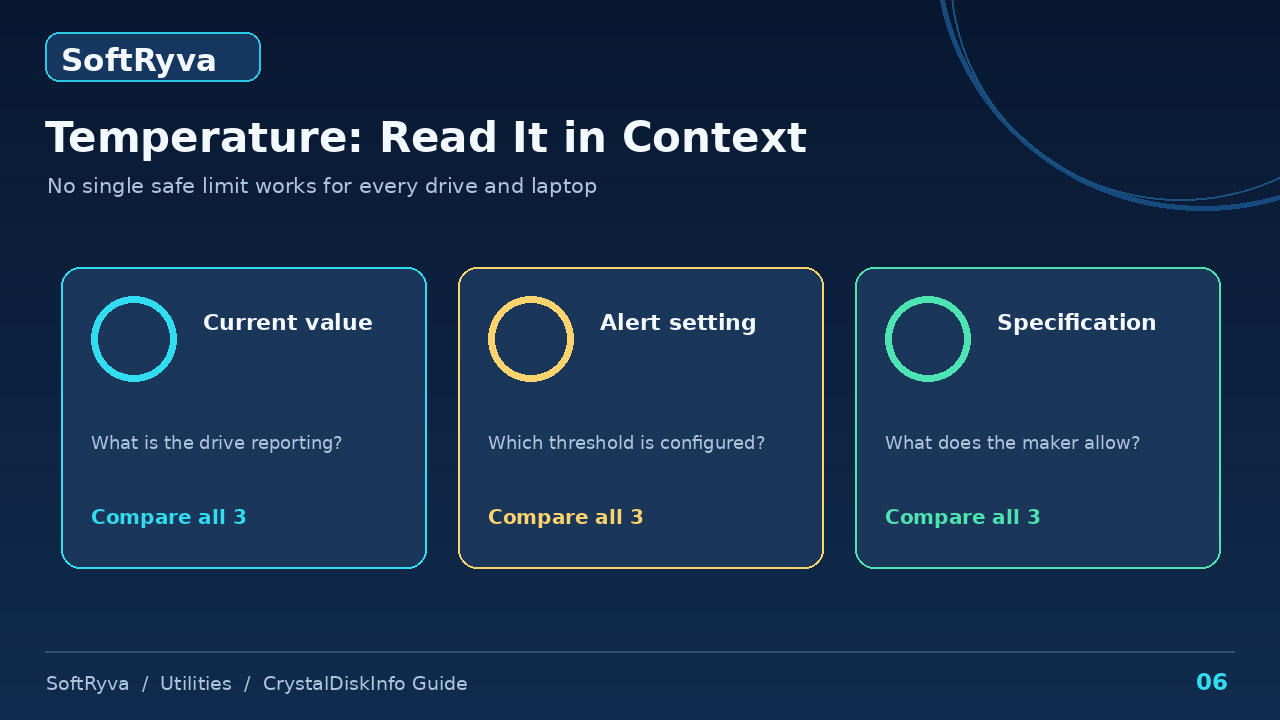
8. How Hot Is Too Hot? Temperature Without Guesswork
Use the actual SSD/HDD model's operating specifications rather than one universal temperature limit.
CrystalDiskInfo displays a temperature value reported by the drive and color-codes it in relation to the application's alert setting. A brief temperature rise during a heavy workload may not mean the device is damaged, but repeated or sustained heat outside the maker's guidance deserves attention.
To investigate a hot SSD or HDD, first note the model and current temperature. Then consult the manufacturer's operating temperature guidance and review airflow, dust buildup, laptop ventilation, or placement near a heat source. Be careful with suggestions to alter fan curves or open a laptop under warranty.
A common mistake is treating an arbitrary internet threshold as a strict rule for every NVMe SSD. Each device may have different sensors, controller behavior, and thermal limits. Check the model documentation before deciding.
9. Use CrystalDiskInfo for Ongoing Monitoring
The utility includes functions for keeping it available in the system tray and updating health information. In the main menu, Function → Resident enables tray residency, Function → Startup configures startup behavior, and Function → Auto Refresh controls the refresh interval. You can use Function → Refresh for an immediate update or Function → Rescan to look for detected disks.
Choose alerts according to your needs, but don't rely on a tray icon as your only defense. If the computer is off, a USB enclosure disconnects, or diagnostic data is unavailable, the software cannot guarantee that you will be warned. Always maintain backups independently.
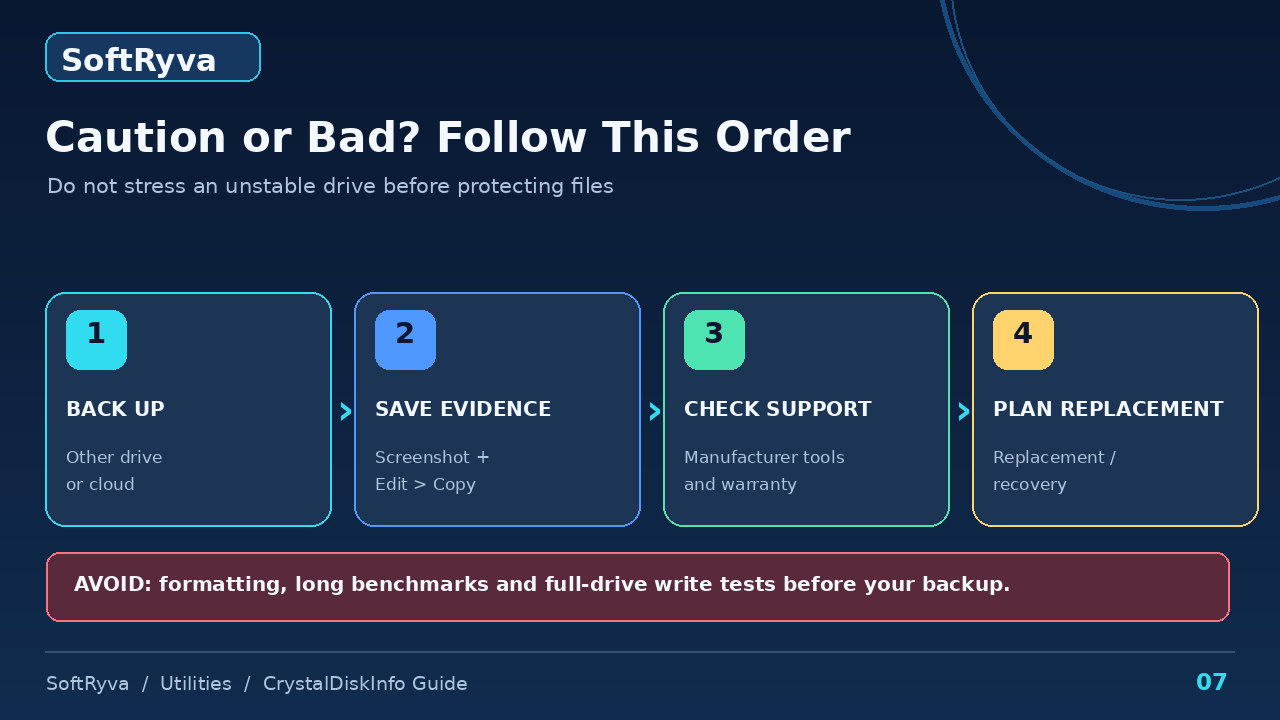
10. CrystalDiskInfo Says Caution or Bad — What Should You Do?
When you first notice an unexpected yellow or red status, avoid immediately running benchmarks, stress tests, or full-drive repair operations. The safest first move is to protect the data that matters.
Data protection comes before diagnosis. This follows the official developer's guidance.
- Back up first: Copy important files to a different physical drive, a NAS, or a trusted cloud service. A second partition of the same failing drive is not a backup.
- Prioritize irreplaceable content: Copy personal photos, business documents, project files, and credentials securely. If reads fail, avoid endlessly repeating the same operation.
- Save the diagnostic evidence: Capture the Health Status, model, temperature, and relevant raw values. Use Edit → Copy if the utility allows.
- Check the warranty: Find the manufacturer and model, then consult the official diagnostic utilities or warranty process.
- Consider replacing the drive: A drive showing continuing errors should not be trusted as the sole copy of important data.
- Seek specialist support when necessary: Clicking sounds, disappearing disks, or irreplaceable data that cannot be read may justify professional data recovery.
11. Troubleshooting Common CrystalDiskInfo Problems
The external USB drive does not appear
Some USB-to-SATA bridge chips, docks, and external cases do not forward the diagnostic commands needed for S.M.A.R.T. reporting. Verify that the disk appears in Windows, inspect the enclosure's specifications, and try the manufacturer's diagnostic utility. Do not assume that an unlisted external disk is healthy.
The drive appears as Unknown
The controller may not expose usable health metrics, the driver may not support the query path, or the data may be incomplete. Make sure the utility is current, note the model and connection type, and consult official device-specific tools. Avoid speculative registry edits.
CrystalDiskInfo shows different percentages than another utility
Tools can interpret vendor-specific endurance attributes differently. Check whether both applications are reading the same physical drive, and identify which attribute is used to derive the percentage. “Percentage Used” and “Remaining Life” are not interchangeable.
Temperature looks unusually high
Compare the measurement during idle and sustained work; check the maker's rated operating range. For an overheating laptop, check ventilation and cooling service needs instead of assuming the tool itself is incorrect.
How can I check whether the HDD is actually slow?
CrystalDiskInfo shows health information. Use Windows Task Manager and other appropriate diagnostic tools for performance issues; a separate disk benchmark (CrystalDiskMark) tests speed, but do not run a heavy benchmark on a suspect drive before backing it up.
12. Practical Project: Build a Seven-Day Drive Health Log
This short project makes the guide more useful than a one-time screenshot. On a computer with a currently functioning, noncritical drive, start a record that you can compare over time.
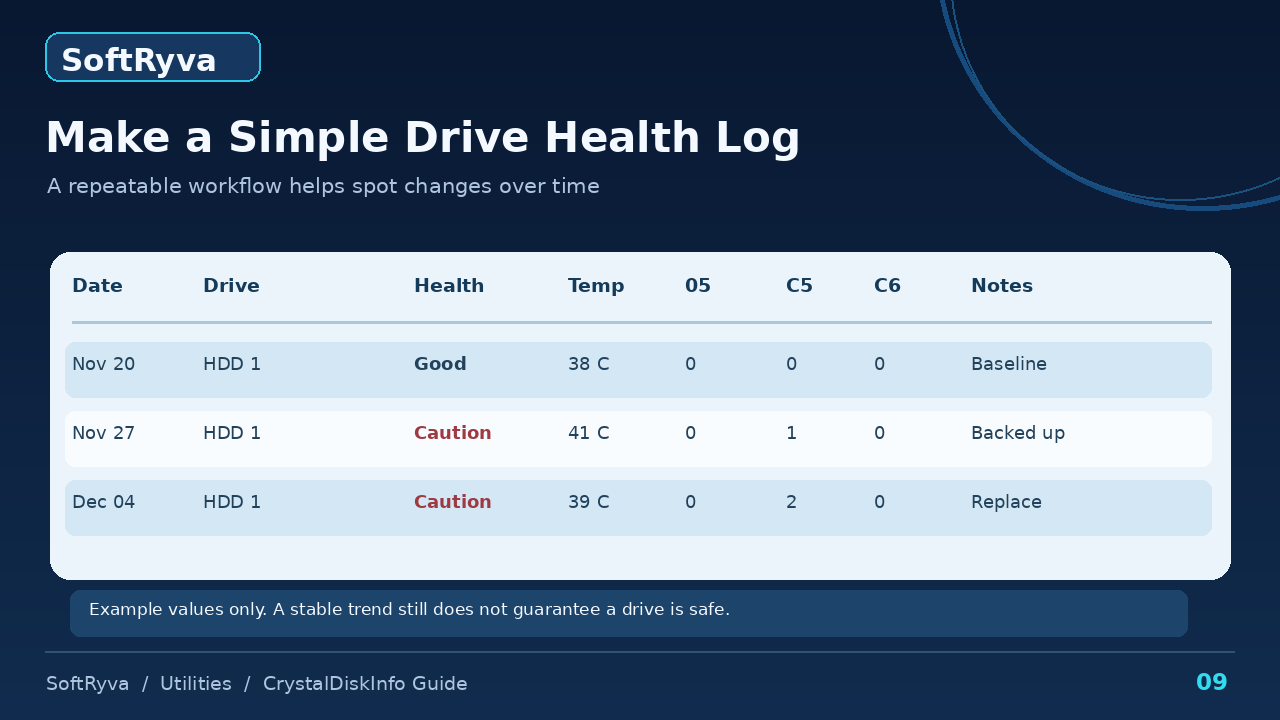
Example only. The numbers are fictional and not measurements from your computer.
- Create a spreadsheet with columns: Date, Drive Model, Health Status, Temperature, Power-On Hours, 05, C5, C6, Notes.
- Record the model and a baseline on day one; use a separate row for each physical disk.
- On later checks, record the same attributes. For SSDs, substitute appropriate endurance and NVMe indicators.
- Look for changes, especially new errors and increasing HDD warning counters.
- If a warning appears, back up first. Logging is not a reason to postpone protecting your data.
13. Frequently Asked Questions
Is CrystalDiskInfo really free?
Yes. The developer distributes the software as a free, open-source storage information utility. Download it through the official site for current packages and versions.
Does it work with Windows 11?
Yes. Windows 11 is listed in the official system requirements. Actual drive-monitoring support also depends on the drive, interface, and controller.
Can CrystalDiskInfo repair bad sectors?
No. It provides diagnostic information and alerts, not physical disk repair. Do not change thresholds to hide errors. Back up important files and seek the manufacturer's recommended next steps.
Can a Good SSD or HDD still fail suddenly?
Yes. S.M.A.R.T. information cannot detect or predict all possible failures. Always store important data in more than one physical location.
Is CrystalDiskInfo the same as CrystalDiskMark?
No. CrystalDiskInfo is designed to read device status and S.M.A.R.T. health information. CrystalDiskMark is used to benchmark storage performance.
Why does an SSD show 98% instead of 100%?
The drive may be reporting estimated endurance consumption or a controller-specific health metric. That is not necessarily evidence of immediate failure. Understand the model's metric, review changes, and keep backups.
Is there a guaranteed safe temperature for every drive?
No. Thresholds vary by SSD/HDD model, enclosure, sensor, and workload. Use the manufacturer's technical specifications and the software's configured alert value.
Should I keep using a disk marked Caution?
Not as the only location for important files. Back up the data, investigate, and consider replacement. If the disk is unstable or data is inaccessible, minimize use and seek professional assistance when appropriate.
14. Final Checklist: Check Your Drive Without Taking Unnecessary Risks
CrystalDiskInfo gives you a helpful view of storage health without requiring specialist equipment. Start from the official download, identify the right physical disk, understand what the colors and S.M.A.R.T. columns represent, and keep a record over time. A health indicator is information, not a guarantee.
The single most important rule: Back up first if you notice Caution, Bad, a rising error count, or symptoms of physical disk failure. Do not postpone data protection while trying to make a warning disappear.
Official CrystalDiskInfo Download
Get the latest Standard Edition Installer or portable ZIP directly from Crystal Dew World. Checked release at the time of writing: 9.9.5 — November 15, 2026.
Visit Official Download PageNo executable files are hosted by SoftRyva. The external link takes you to the software developer's website.