
Is your laptop battery draining faster than usual? Does your computer shut down unexpectedly or require more frequent charging?
Before replacing your battery or installing third-party diagnostic software, you can use a built-in Windows 11 tool to check its condition. PowerCfg generates a battery report with information about battery capacity, usage, and estimated runtime.
In this SoftRyva guide, you will learn how to generate the report, interpret its readings, calculate estimated battery health, and identify signs of battery deterioration.
1. What Is Laptop Battery Health?
Battery health describes the condition of a battery compared with its original rated capacity. Lithium-ion batteries gradually lose capacity as they age, so an older battery may store less energy than when it was new.
| Measurement | Meaning |
|---|---|
| Battery charge level | Percentage of charge currently available |
| Battery health | Estimated maximum capacity compared with original rated capacity |
| Battery life | How long the laptop can operate before requiring a recharge |
A laptop can display a 100% charge while its battery retains only 70% of its original capacity. A fully charged battery is not necessarily a healthy battery.
2. How to Generate a Battery Report in Windows 11
Step 1: Open Command Prompt
- Open the Windows Start menu.
- Search for Command Prompt or CMD.
- Select Run as administrator.
- Confirm the User Account Control prompt if it appears.
Step 2: Run the Battery Report Command
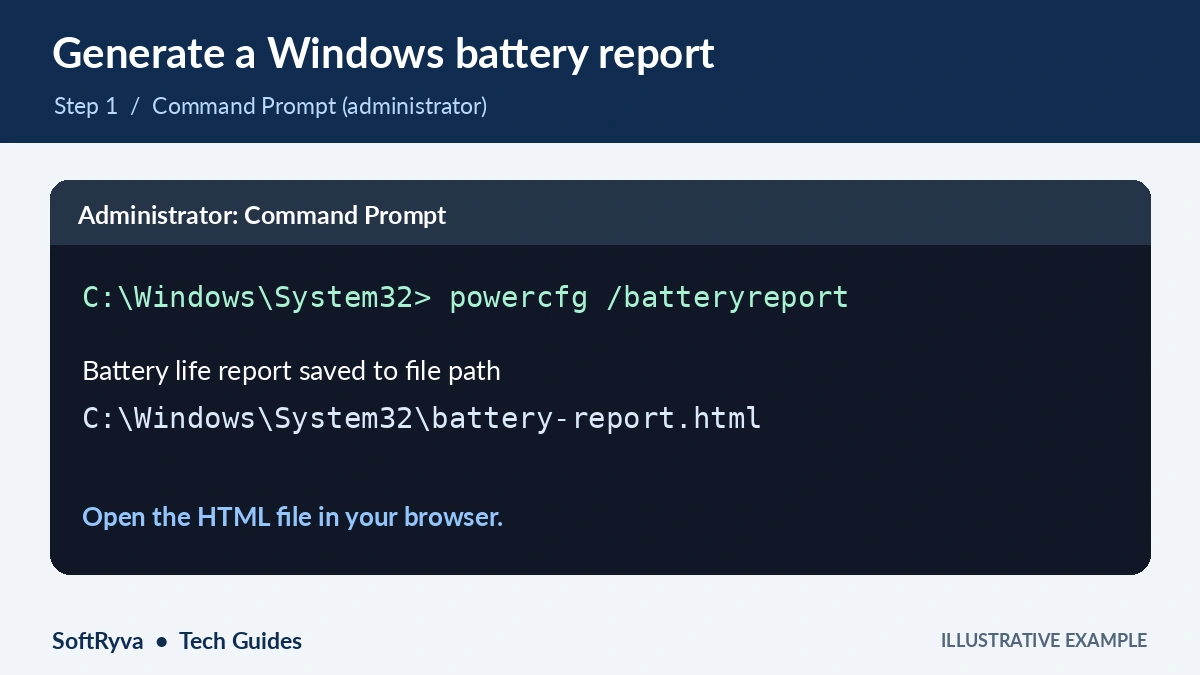
Enter the following command and press Enter:
powercfg /batteryreportWindows generates an HTML report and displays its saved file location. The default location depends on the current working directory. An elevated Command Prompt may save it to C:\Windows\System32\battery-report.html.
Step 3: Open the Battery Report
Open File Explorer, navigate to the displayed file location, and double-click battery-report.html to open it in your web browser.
Optional: Save the Report to an Easier Location
To save the report inside your Windows user folder, enter the following in Command Prompt (CMD, not PowerShell):
powercfg /batteryreport /output "%USERPROFILE%\battery-report.html"Then open it with:
start "" "%USERPROFILE%\battery-report.html"The report is generated locally and does not require an internet connection.
3. Understanding the Windows Battery Report
The most useful section for checking battery capacity is Installed batteries. Look for these fields:
| Field | Description |
|---|---|
| Name | Battery identification |
| Manufacturer | Battery manufacturer |
| Chemistry | Battery technology |
| Design Capacity | Original rated energy capacity |
| Full Charge Capacity | Estimated energy capacity at full charge |
| Cycle Count | Reported number of charge cycles, when available |
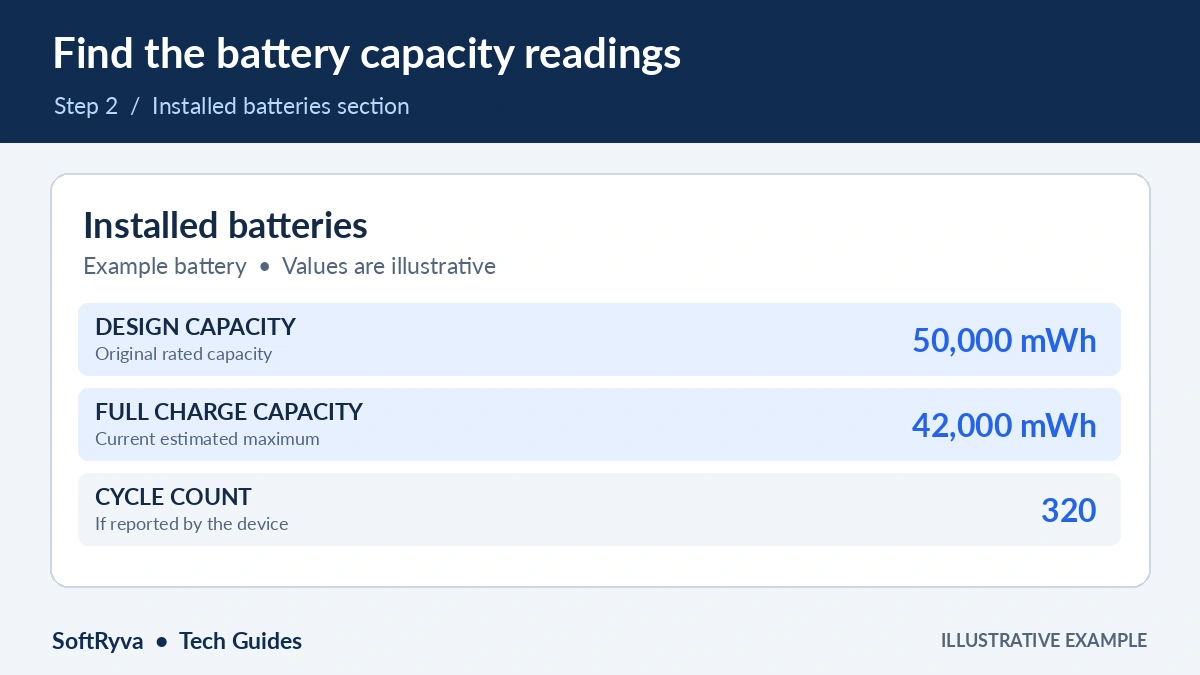
Battery capacities are commonly expressed in milliwatt-hours (mWh). A larger difference between Design Capacity and Full Charge Capacity generally indicates greater capacity loss. These values are estimates reported by battery hardware and firmware, not independent laboratory measurements.
4. How to Calculate Laptop Battery Health
Try our free Battery Health Calculator
Windows does not always display a direct battery health percentage. You can estimate it with two capacity readings:
Battery Health (%) = (Full Charge Capacity ÷ Design Capacity) × 100
Consider this illustrative example:
| Battery information | Example value |
|---|---|
| Design Capacity | 50,000 mWh |
| Full Charge Capacity | 42,000 mWh |
| Cycle Count | 320 |
Battery Health = (42,000 ÷ 50,000) × 100 = 84%
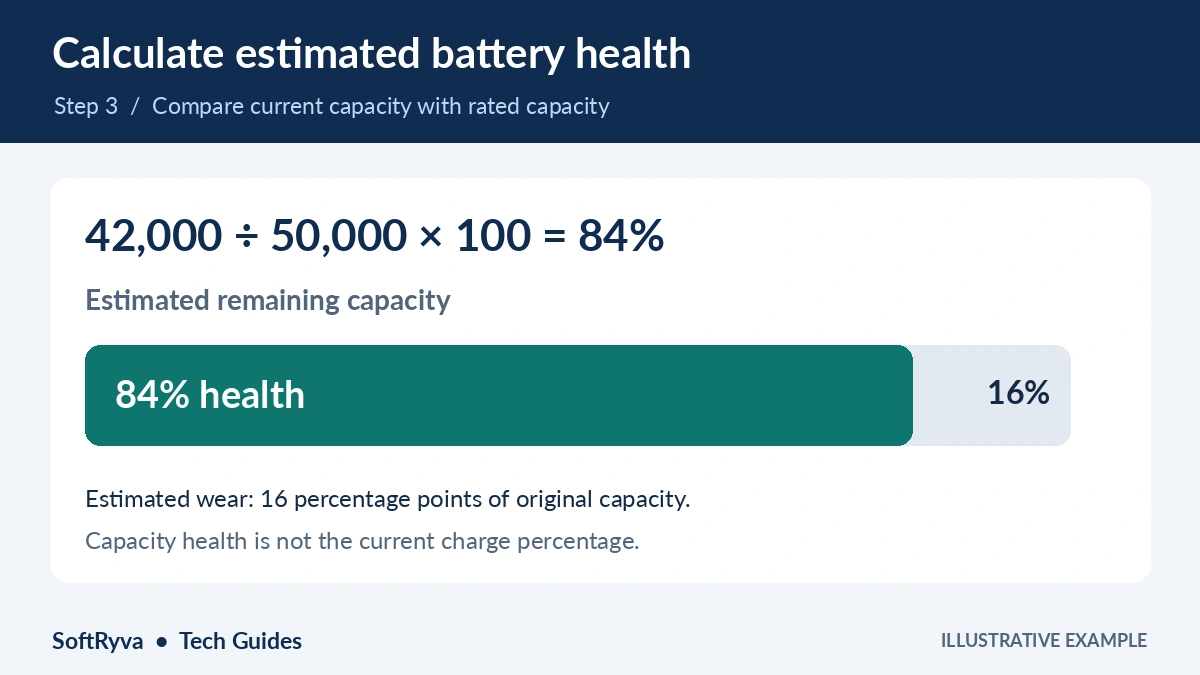
Battery Wear (%) = 100 − Battery Health (%) = 16%
The battery retains approximately 84% of its rated energy capacity. This does not mean it must be replaced immediately. Its usefulness depends on actual runtime, physical condition, and everyday requirements. Use readings in the same units for both values; if Design Capacity is zero or missing, the calculation is not valid.
5. Laptop Battery Health Percentage: What Is Considered Good?
| Estimated health | General interpretation |
|---|---|
| 90–100% | Excellent remaining capacity |
| 80–89% | Good remaining capacity |
| 60–79% | Noticeable capacity deterioration |
| Below 60% | Substantial capacity loss |
These are informal editorial guidelines, not official Microsoft diagnostic thresholds or universal replacement requirements. A reported Full Charge Capacity may occasionally exceed Design Capacity because of manufacturing tolerances or reporting variations. Consider actual runtime, manufacturer advice, physical condition, and capacity trends alongside the calculated percentage.
6. What Does Battery Cycle Count Mean?
A battery cycle represents the equivalent of using 100% of the battery’s capacity. It does not necessarily mean charging from 0% to 100% in a single session. Using 50% on Monday and another 50% on Tuesday represents approximately one equivalent full cycle.
Cycle count is useful but is not a complete measure of battery condition. Temperature, charging patterns, chemistry, and elapsed time also affect aging. A dash or missing cycle count may mean the device does not expose that information to Windows.
7. Other Useful Sections in the Battery Report
- Recent Usage: recent power states, charging activity, and remaining capacity.
- Battery Usage: information about recorded discharge periods.
- Usage History: time spent using battery power or external power.
- Battery Capacity History: capacity measurements over time. A sustained decline can indicate deterioration.
- Battery Life Estimates: estimated operating time based on recorded usage, not a guarantee. Brightness, applications, processor activity, and power settings influence actual runtime.
8. Signs Your Laptop Battery May Need Replacement
Investigate the battery further if you notice:
- Significantly reduced runtime.
- Unexpected shutdowns while charge remains available.
- Sudden changes in the displayed battery percentage.
- Persistent charging problems.
- A substantial decline in reported maximum capacity.
- Physical deformation around the battery compartment.
Safety warning: If you notice swelling, stop using and charging the device. Do not puncture, compress, or attempt to repair the battery yourself. Contact the manufacturer or a qualified repair service. A battery health percentage cannot rule out a physical safety issue.
Charging problems can also come from the charger, charging port, firmware, or other hardware, so they do not automatically indicate battery failure.
9. How to Extend Your Laptop Battery Lifespan
- Avoid excessive heat: keep ventilation openings clear and avoid hot environments.
- Use moderate charging levels: when practical, avoid repeated deep discharge and prolonged maximum charge. A range around 20–80% may help reduce battery stress; follow manufacturer recommendations.
- Enable Smart Charging: if supported, use the charging limits provided by your laptop manufacturer or firmware.
- Reduce power consumption: open Settings → System → Power & battery, use the available energy-saving options, adjust screen brightness, and close unnecessary demanding applications.
- Use a compatible charger: follow the manufacturer’s voltage, power, and compatibility requirements.
- Store the laptop properly: for long periods of storage, use a cool, dry environment and a moderate battery charge, following manufacturer guidance.
10. Troubleshooting Windows Battery Report Problems
The Battery Report Does Not Open
Check the file path displayed after running the command. Open the HTML document with a browser.
The Command Returns an Error
Verify the spelling and try an elevated Command Prompt. You can specify a writable output location inside your user folder.
Battery Capacity Information Is Missing
Some devices do not report complete battery information. Check the official firmware and battery diagnostic tools available from the laptop manufacturer.
Battery Health Exceeds 100%
This can occur when the reported Full Charge Capacity exceeds Design Capacity. Verify the readings and monitor their evolution rather than treating one measurement as definitive.
Frequently Asked Questions
Can I check battery health without installing software?
Yes. PowerCfg is built into Windows 11, so no third-party software is required.
Does generating a battery report damage the battery?
No. It reads available battery information and does not require a discharge test or change charging settings.
Is 80% battery health good?
A battery retaining 80% of its original capacity may still be useful. Replacement depends on actual runtime, condition, and manufacturer recommendations.
Can laptop battery health be restored to 100%?
Chemical aging cannot normally be reversed through software. Calibration may improve reporting accuracy but does not restore physically lost capacity.
How often should I check battery health?
Every few months can help identify long-term capacity changes, especially if runtime declines.
Does this work on Windows 10?
Yes. The battery report command is also available on Windows 10.
Is Windows Battery Report completely accurate?
It is a useful diagnostic starting point, but readings depend on the battery and firmware. Manufacturer diagnostics may be necessary for a more comprehensive assessment.
Official Microsoft Resources
- Microsoft Learn — PowerCfg command-line options
- Microsoft Support — Caring for your battery in Windows
- Microsoft Support — Use Smart charging in Windows
- Microsoft Support — Battery saving tips for Windows
Conclusion
Checking laptop battery health in Windows 11 is simple, free, and does not require additional software. The built-in battery report helps you monitor battery capacity, understand usage patterns, and make informed maintenance decisions.
Compare Full Charge Capacity with Design Capacity, track changes over time, and consider real-world runtime before deciding whether to replace your battery.
SoftRyva — Practical technology guides, software resources, and smarter digital solutions.